How to Create a Book A Friendly Guide for Beginners

I remember the night I typed the last sentence of my first manuscript. My fingers hovered over the keyboard, my heart pounded. I hit that final period like I was planting a flag on the moon.
I leaned back in my chair and thought, “I did it. I wrote a book.” That rush lasted about three glorious hours. Then, I realized I had no idea what to do next.
Learning how to create a book is more than just writing. Your finished manuscript is just the start. The book creation process includes formatting, designing pages, building a cover, and preparing a print-ready file. It’s a whole second adventure after the writing wraps up.
The good news? You don’t need a publishing deal or a big budget to get started. Platforms like Amazon KDP and Lulu have made self-publishing easy. Print-on-demand means you can hold your own paperback without ordering a garage full of copies.
In this guide, I’ll walk you through every step from manuscript to book. I’ll share the software I use, the mistakes I made, and the tricks that saved me hours of frustration. Whether you’re writing fiction, nonfiction, or a photo book, this friendly roadmap is built for beginners who want clear answers — not industry jargon.
Key Takeaways
- Finishing your manuscript is only the first step in the full book creation process.
- Self-publishing tools and print-on-demand services make it affordable to go from manuscript to book on your own.
- Choosing the right design software — like Affinity Publisher or even Microsoft Word — shapes the quality of your final product.
- Every book needs proper front matter, back matter, page layout, and a professional cover before publishing.
- A print-ready PDF with embedded fonts and correct resolution is essential for a polished result.
- This self-publishing guide covers each stage so you can confidently create a book from start to finish.
Understanding What Book Creation Really Means
When you decide to write a book, you might think of just typing words. That’s a good start, but it’s just the beginning. Book creation is about making your ideas into a book that readers want to read. It’s like framing art. The right frame makes the art stand out.
The Journey From Manuscript to Published Book
Your journey starts when you finish your draft. It doesn’t end until you have a PDF ready for printing. You’ll work on editing, layout, and cover design. Each step is important. Skipping one can make your book look unfinished.
- Write and complete your full manuscript
- Edit and proofread for clarity and grammar
- Learn book formatting basics to design clean layouts
- Export a print-ready PDF for publishing
Why Self-Publishing Is More Accessible Than Ever
Platforms like Amazon KDP and Lulu make self-publishing easy. You just need a formatted PDF and some book details. But, designing that PDF is hard. It takes time, patience, and the right tools.
Setting Realistic Expectations for Your First Book
Your first book won’t be perfect, and that’s fine. I learned this early. Preparing your manuscript takes weeks. Adding formatting makes it even longer. Here’s a timeline for beginners.
| Stage | Estimated Time | Difficulty Level |
|---|---|---|
| Writing the Manuscript | 2–6 months | Moderate |
| Editing and Proofreading | 2–4 weeks | Moderate to High |
| Learning Book Formatting Basics | 1–2 weeks | Moderate |
| Designing the Interior Layout | 1–3 weeks | High |
| Cover Design | 3–7 days | Moderate |
| Final Export and Upload | 1–2 days | Low |
With a clear plan and realistic goals, you’re ready to start. First, finish your manuscript before moving on to design.
Completing Your Manuscript Before Everything Else
One of the best tips for writing a book is simple: finish writing before you do anything else. It might seem obvious, but many of us start designing our book too soon. Your main goal should always be to complete your manuscript, whether it’s a novel, memoir, or cookbook.
Why I Always Want to Format Too Early
I’ve lost many writing sessions to choosing fonts or testing drop cap styles. It seems like it’s getting work done, but it’s not. Spending time on font choices won’t help you finish your book. The words come first, then the design.
Save yourself trouble and wait to format until every chapter is written.
The Importance of Professional Editing
After you’ve finished writing, it’s time for professional editing. An editor can spot things you can’t after staring at your work for months. The Editorial Freelancers Association says editing rates depend on the type:
| Editing Type | What It Covers | Average Cost Per Word |
|---|---|---|
| Developmental Editing | Structure, pacing, plot | $0.07–$0.12 |
| Copyediting | Grammar, consistency, clarity | $0.04–$0.07 |
| Proofreading | Typos, punctuation, formatting errors | $0.02–$0.04 |
Preparing Text for Different Book Types
Preparing text varies by book type. For novels, write and edit every word before formatting. For books with lots of images, like photo books or cookbooks, storyboard your layouts early. But write all the copy first. This makes the design phase easier and faster.
Choosing the Right Book Creation Software
Choosing the right book design software is crucial. It affects how your pages look and how your content flows. It also determines how your final file is exported.
After editing my manuscript, I needed formatting tools. I found that all software has a learning curve. The key is to find software that fits your skill level, budget, and project needs.
“The best software is the one you’ll actually use. Don’t let the perfect tool become the enemy of a finished book.”
Every program supports PDF creation, which is essential for print-on-demand services. Here’s a quick breakdown of the top options I’ve tested:
| Software | Price | Skill Level | Best For | PDF Creation |
|---|---|---|---|---|
| Affinity Publisher | $69.99 (one-time) | Intermediate | Affordable pro-level design | Yes |
| Adobe InDesign | $22.99/month | Advanced | Industry-standard publishing | Yes |
| Scribus | Free | Intermediate | Budget-conscious creators | Yes |
| Microsoft Word | Included with Microsoft 365 | Beginner | Simple text-heavy books | Yes (basic) |
| Atticus | $147.99 (one-time) | Beginner | Fast web-based formatting | Yes |
Powerhouse tools like InDesign and Affinity Publisher offer full control. Atticus focuses on fast formatting. I’ll explore each option in more detail.
Exploring Affinity Publisher for Book Design
I was looking for book design tools that wouldn’t cost too much. Affinity Publisher by Serif kept popping up. It’s a great choice for indie authors and small publishers.
Why It’s My Current Go-To Choice
Affinity Publisher has almost everything I need for book layout. The design is clean and easy to use. Menus are logical, and tools are where you’d expect them.
It handles master pages, text flow, and image placement well. Serif updates it regularly, keeping it reliable and competitive.
Understanding the Learning Curve
Learning any software takes time. Affinity Publisher takes a few hours to get used to. But it’s easier than many other tools.
Serif offers free tutorials and a community shares tips. After a weekend, I was ready to lay out a chapter.
Cost Benefits Compared to Adobe
Affinity Publisher is a big win for those watching their budget. Here’s a quick comparison:
| Feature | Affinity Publisher (Serif Design) | Adobe InDesign |
|---|---|---|
| Pricing Model | One-time purchase (~$69.99) | Monthly subscription (~$22.99/mo) |
| Annual Cost (Year 1) | $69.99 | $275.88 |
| Annual Cost (Year 3 Total) | $69.99 | $827.64 |
| Professional Layout Tools | Yes | Yes |
| PDF Export for Print | Yes | Yes |
Over three years, you could save more than $750 with Serif. That’s a lot of money for editing or cover design.
Adobe InDesign for Professional Publishers
If you’re serious about professional book design, Adobe InDesign is the top choice. I’ve worked with it for years. It offers unmatched features for those who want control over every detail.
Adobe InDesign excels in the publishing process. It works well with Adobe Photoshop, Illustrator, and Fonts. This makes your work flow smoothly from start to finish.
The software has many features to speed up your work:
- Print-ready templates for platforms like Lulu and Amazon KDP
- Master pages for consistent headers, footers, and margins
- One-click PDF export for commercial printing
- GREP styles for advanced text formatting
However, Adobe InDesign has a steep price tag. It costs $22.99 per month through Adobe Creative Cloud (as of 2024). For one book, it might seem expensive. But for designers or publishers, it’s worth it.
Here’s how Adobe InDesign compares to other options:
| Feature | Adobe InDesign | Affinity Publisher | Scribus |
|---|---|---|---|
| Pricing Model | $22.99/month subscription | $69.99 one-time purchase | Free (open source) |
| Professional Book Design Tools | Extensive and industry-leading | Strong and growing | Basic but functional |
| Plugin Ecosystem | Thousands of third-party plugins | Limited but expanding | Minimal |
| Learning Curve | Steep | Moderate | Moderate to steep |
| Print-Ready PDF Export | Advanced with full prepress controls | Reliable with good presets | Adequate for most needs |
If your budget allows and you’re ready to learn, Adobe InDesign is perfect. It will help you from your first book to your fiftieth.
Free and Budget-Friendly Design Options
Not everyone can afford premium software. But, there are free book design tools that help you publish without spending much. I’ve tried a few, and each has its own benefits.
Working with Scribus Open-Source Software
Scribus is a free, open-source tool for desktop publishing. It does page layouts, master pages, and PDF exports well. The interface might feel old compared to apps like Affinity Publisher.
But, if you’re on a tight budget, Scribus is a good choice for text-heavy books.
Using Microsoft Word Despite Its Limitations
Microsoft Word is not the best for complex layouts. It can get messy with headers, footers, and page numbers. It’s okay for simple novels with little design.
Just remember, Word can’t make book covers. If you already have it, it’s a starting point.
Discovering Atticus for Web-Based Creation
Atticus is a web tool that surprised me. It does writing, editing, and layout in one place. The interface is easy to use, like Google Docs.
You can use templates, control design settings, and save styles. It exports PDF and EPUB files that fit standard book sizes.
| Feature | Scribus | Microsoft Word | Atticus |
|---|---|---|---|
| Cost | Free | $69.99/year (Microsoft 365) | $147 one-time |
| Cover Design | Yes | No | No |
| EPUB Export | No | Limited | Yes |
| PDF Export | Yes | Yes | Yes |
| Built-in Templates | Limited | Basic | Extensive |
| Learning Curve | Steep | Low | Low |
Choose the tool that matches your budget and skills. Once you’ve got the interior, focus on the front and back matter. I’ll cover that next.
How to Create a Book with Proper Front and Back Matter
Creating a book is more than just writing. You need pages before and after your main story. Front and back matter make your book look professional. Add these pages first to get the right page count for your PDF.
Essential Pages Every Book Needs
Every book, from novels to self-published guides, needs a clear structure. Here are the pages I always include:
- Half-title page
- Full title page
- Copyright page
- Dedication (optional but nice)
- Table of contents
- Author bio page (back matter)
Even if you’re not selling your book, these pages are quick to add. They show readers you care about quality.
Copyright and Title Page Requirements
Copyright pages protect your work and show who owns it. I put mine right after the title page. Include your copyright year, name, and rights statement. If you have an ISBN, list it here too.
Your title page should have your book’s title, subtitle, and author name. Keep it simple and easy to read. These two pages are key to your front matter.
Building Your Table of Contents
A good table of contents makes reading easy. For print books, list chapter titles with page numbers. For ebooks, link each entry to the chapter.
A great book isn’t just great writing—it’s a great reading experience from the first page to the last.
I build my table of contents after setting up front and back matter. This makes sure all page numbers are right in the final PDF. Once you pick your software, putting it all together is easy.
Understanding ISBNs and Distribution Requirements
If you’re starting with self-publishing, you’ll soon learn about ISBNs. At first, they might seem like extra work. But, these numbers are key to getting your book to readers.
An ISBN is a unique 13-digit code for your book. It’s like a social security number for books. Stores, libraries, and online sites use it to keep track of your book. Without an ISBN, your book won’t show up in many places.
Getting an ISBN is easier than you think. Here’s a quick guide:
| ISBN Source | Cost | Publisher of Record | Best For |
|---|---|---|---|
| Bowker (U.S. official agency) | $125 for one / $295 for ten | You or your imprint | Authors wanting full brand control |
| Lulu (free ISBN) | $0 | Lulu listed as publisher | Budget-conscious first-time authors |
| Amazon KDP (ASIN only) | $0 | N/A (Amazon ecosystem only) | Kindle-exclusive digital books |
Lulu gives away free ISBNs, making it easy to get your book out there. But, Lulu will be listed as the publisher. If you want to keep your brand, buying your ISBN from Bowker is best.
Each version of your book — like paperback, hardcover, or ebook — needs its own ISBN. Many new authors forget this. Stores use these numbers to tell different editions apart.
- Paperback and hardcover each need separate ISBNs
- Ebooks distributed outside Amazon require one too
- Audiobooks get their own identifier as well
Getting your ISBN early makes the book distribution process smoother. After setting up your book’s front and back matter, adding your ISBN is the next step. Then, you can focus on page layout.
Mastering Page Layout Fundamentals
Getting your page layout right is key to making your manuscript look like a real book. It’s the foundation of book formatting. Before you start with fonts or styles, you need to decide on book dimensions, margin settings, and spacing.
Setting Your Book Size and Margins
The first thing I do is choose my book size. In the U.S., 5″ x 8″ and 6″ x 9″ are the most popular sizes for novels and nonfiction. Your choice affects how many words fit on each page and how the book feels in a reader’s hands.
After picking a size, I set my margin settings. I make sure text stays within the printable area. Most printers say to have at least 0.5″ margins on all sides. Tight margins can cut off text, which looks amateur.
| Book Dimensions | Genre Fit | Recommended Margins (Top/Bottom/Outside) |
|---|---|---|
| 5″ x 8″ | Fiction, Poetry, Novellas | 0.5″ minimum |
| 5.5″ x 8.5″ | Nonfiction, Self-Help | 0.5″ – 0.75″ |
| 6″ x 9″ | Nonfiction, Textbooks, Memoirs | 0.75″ – 1″ |
Working with Headers and Footers
Headers are between the top margin and the main text. I use them for author names on the left and chapter titles on the right. Page numbers go in headers or footers, but I prefer footers for a clean look. Remember to remove them from chapter title pages.
The Critical Role of Gutter Space
The gutter is extra margin along the spine where pages bind together. Without enough gutter space, words disappear into the fold. I add 0.125″ to 0.5″ depending on my page count.
“Good book formatting is invisible to the reader. Bad formatting is all they see.”
Getting your page layout right early saves hours of rework. Once you’ve got these basics down, you can style your content with professional polish.
Designing Your Content with Professional Styles
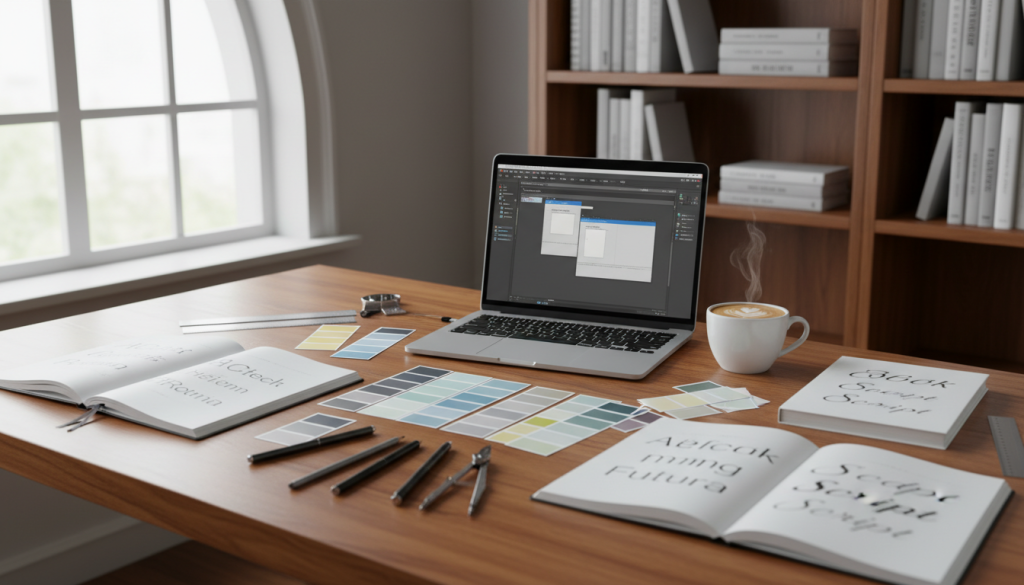
Once your page layout is set, it’s time to focus on how your words look. Good book typography makes a big difference. I use style-based design to keep everything looking the same. This makes my book look professional and saves me time.
Creating Consistent Body Text Formatting
I make paragraph styles before I start writing. This way, I set my rules once for font size, weight, color, and spacing. For most books, I use:
- Body text size between 10 and 12 points
- Standard black text for print
- Line spacing (leading) at 120–145% of the font size
- First-line indents of 0.25 to 0.5 inches for paragraphs
Choosing Fonts That Enhance Readability
Font selection is key for a good reading experience. I choose serif fonts like Garamond, Caslon, or Palatino for body text. These fonts help the eye move smoothly over long text.
For chapter titles, I pick a font that matches the book’s genre. This can be something bolder or more stylized.
“Typography is the craft of endowing human language with a durable visual form.” — Robert Bringhurst, The Elements of Typographic Style
| Style Element | Recommended Setting | Why It Matters |
|---|---|---|
| Body Font | Garamond, Caslon, or Palatino | High readability for long-form text |
| Font Size | 10–12 pt | Comfortable reading without eye strain |
| Line Spacing | 120–145% of font size | Prevents lines from feeling cramped |
| Text Color | 100% Black (K) | Sharpest print reproduction |
Applying Proper Text Justification
I justify my body text to keep margins even. This is standard in professional book design. The key is enabling hyphenation to avoid ugly gaps between words.
Most guides agree: justified text with careful hyphenation looks refined. It’s what readers expect from a published book.
Creating Image-Heavy and Photo Books
Some books use pictures as much as words. If you’re making photo books, cookbooks, or graphic novels, you need more than a basic word processor. I learned this the hard way when I tried putting full-page photos in Microsoft Word. It was a mess.
Projects with lots of images need exact control over layout. You must place photos, wrap text around them, and layer elements on one page. Tools like Affinity Publisher, Adobe InDesign, and Canva offer this control. They let you move images exactly where you want and pair them with text neatly.
Remember, every image must be at least 300 DPI. Lower DPI makes images look grainy and pixelated in print. This is true for graphic novels and cookbooks full of food photos.
Here’s a quick look at popular software options for visual-heavy projects:
| Software | Best For | Cost | Image Control |
|---|---|---|---|
| Affinity Publisher | Photo books, cookbooks | $69.99 one-time | Excellent |
| Adobe InDesign | Graphic novels, pro layouts | $22.99/month | Excellent |
| Canva | Simple photo books | Free / $12.99/month Pro | Good |
When picking your tool, think about your project’s complexity. Canva is great for simple photo books. But for graphic novels with complex layouts, use InDesign or Affinity Publisher.
Before making your print-ready PDF, check that every image is in the right place. Even a small change can mess up your layout.
Preparing Your Print-Ready PDF File
Your book design is complete. Your layout looks amazing. Now, it’s time for PDF preparation. This step is crucial to avoid mistakes. Getting your files right ensures a beautiful printed book.
Checking Resolution and Image Quality
Always check images before exporting. Printers need images at 300 DPI. Some PDF settings can shrink your images. Make sure your export settings don’t do this.
Embedding Fonts Correctly
Custom fonts, like those for chapter titles, must be embedded. If not, the printer will use a default font. This ruins your design. Most software lets you embed all fonts. Never skip this step.
Flattening Layers for Professional Printing
Your file has layers for text, graphics, and backgrounds. Print-ready files need these layers combined. This helps printers read your pages correctly.
Managing File Size for Uploads
File size is important, especially for image-heavy books. I’ve seen files as big as 38 GB. Such large files can’t be uploaded for printing.
| File Size Range | Upload Experience | Recommended Action |
|---|---|---|
| Under 500 MB | Smooth and fast | No compression needed |
| 500 MB – 2 GB | Slower but manageable | Light compression suggested |
| Over 2 GB | Frequent timeouts and failures | Aggressive file optimization required |
Save your work in the software’s native format. Then, export a separate PDF for printing. This way, you can edit later without starting over.
Designing a Cover That Sells Your Book
Your cover grabs a reader’s attention first. It makes an impression in seconds, whether in a store or online. I learned this the hard way with my early projects. A weak cover can hurt a great book, but a strong one draws readers in before they start reading.
Good book cover design focuses on imagery and typography. Your title should stand out on the front. The design must look good in full size and small on a phone screen. I always check my covers at both sizes before finalizing.
The back cover and spine are important too. The back cover is your sales pitch, with a description, reviews, bio, and barcode. The spine shows your title, author name, and publisher. Remember, spine width depends on page count, so finish your interior first. You can find tools and guides at IngramSpark’s cover design resources.
Cover optimization is key for all formats. Here’s a quick guide for specs:
| Specification | Requirement |
|---|---|
| Resolution | 300 ppi |
| Color Space | CMYK |
| Bleed | 0.125 inches on all sides |
| Hardcover Wrap | 0.625 inches |
| Type Safety Margin | 0.25 inches |
Current visual marketing trends include:
- Minimalism with bold, clean layouts
- Double exposure photography effects
- Big, dramatic typography
- Botanical illustrations
- Real, authentic photography
Whether you hire a designer or use tools like Canva, a good cover is worth it. A professional-looking cover builds trust and boosts sales. It sets you up for success in publishing and distribution.
Publishing Your Book Through Print-on-Demand Services
Once your manuscript is ready and your cover design is done, it’s time to publish. Print-on-demand services make it easy for authors to get books out without spending a lot upfront. Here’s how I get everything ready for upload.
Final Quality Checks Before Upload
Before uploading, I check a few things. This step helps avoid costly mistakes and saves time.
- Verify all images are at least 300 DPI for crisp printing
- Confirm fonts are fully embedded in the PDF
- Check that all layers are flattened in the final file
- Review margins and bleed marks one last time
Skipping even one of these steps can lead to blurry images or cut-off text in your printed book.
Using Lulu’s Publishing Platform
I use Lulu for my print-on-demand needs. Creating an account is free, and they guide you through publishing. Their guides cover everything from spine sizing to PDF requirements.
On Lulu’s Products pages, you’ll find downloadable templates. These show margins and bleed marks for different page sizes. They make formatting easier.
Understanding Print Specifications
Getting your book specifications right is key. Each provider has its own rules for trim size, paper type, and binding. Here’s a quick guide I use for Lulu:
| Specification | Common Requirement |
|---|---|
| Trim Size | 6″ x 9″ (most popular for novels) |
| Bleed | 0.125″ on all sides |
| Interior File Format | PDF (fonts embedded, layers flattened) |
| Image Resolution | 300 DPI minimum |
| Color Profile | CMYK for color interiors, Grayscale for B&W |
Matching your files to the right specifications ensures a smooth print. With everything checked and uploaded, you’re just days from holding your book. That feeling is worth all the effort.
Marketing Strategies for New Authors
Writing and designing your book is just the start. After uploading your print-ready file, you need a plan to reach readers. I learned this the hard way with my first project. I spent months perfecting the interior layout but ignored book marketing strategies. The result? Crickets.
Let me share what I wish I’d known from the start about building visibility and driving book sales.
Building Your Author Platform Early
Your author platform is your online home. I recommend setting it up before your book launches. Start with a clean, professional website. Include an “about me” page, book details, and a sign-up form for an email newsletter.
A blog on your site keeps things fresh and helps with search engine traffic. Write about your writing process, your genre, or behind-the-scenes peeks at your creative life. This draws in readers who connect with you, not just your book.
Here’s a quick breakdown of key author platform elements:
- A dedicated author website with book information and contact details
- An email newsletter to share updates and exclusive content
- Profiles on Goodreads and Amazon Author Central
- A regularly updated blog tied to your niche
Leveraging Social Media for Book Promotion
Social media promotion is a powerful (and free) tool. I focus on platforms where my readers already hang out. For fiction, that often means Instagram and TikTok. For nonfiction, LinkedIn and Facebook tend to perform well.
You can explore a comprehensive list of creative book marketing ideas that covers everything from contests to influencer partnerships.
The best time to start marketing your book is six months before it launches. The second-best time is right now.
Pair organic social media promotion with small paid ad campaigns on Facebook or Amazon. This can give your book sales a real boost. Even $5 a day can make a measurable difference when your targeting is dialed in.
Conclusion
Your book journey begins with finishing your manuscript. Then, you need to choose the right tools and learn layout basics. Getting started might seem hard, but it all comes together once you start.
Self-publishing is possible for anyone with a story. Whether it’s a fantasy novel or a family story, tools like Affinity Publisher make it easy. You don’t need a big publisher to get your book out there.
What’s exciting is the power you have as an author. You decide on your cover, price, and where your book goes. Print-on-demand services have changed the game for indie creators.
So, grab your manuscript and software, and begin. The journey from blank page to published book is quicker than you think. And the world is eager to read what you’ve written.
FAQ
What is the first step in how to create a book from scratch?
First, finish your manuscript. It’s tempting to jump into design, but your book must be fully written and edited first. For books with lots of pictures, like cookbooks, planning where to put text is important. But all your words should be done before you start designing.
What is the best book creation software for beginners who want to write a book?
The best software depends on your budget and what you’re comfortable with. I suggest Affinity Publisher by Serif. It’s affordable and has most of Adobe InDesign’s features. If you’re on a tight budget, Scribus is a good choice, though it’s a bit clunky.
Atticus is great for those who want something simple. It’s like Google Docs but for making PDFs and EPUBs. Microsoft Word is okay for simple designs, but for serious book formatting, it’s better to use something else.
Do I need an ISBN for self-publishing my book?
Yes, if you plan to sell your book online, you need an ISBN. It’s a unique number that helps retailers list your book. Lulu offers free ISBNs, or you can buy one from your local ISBN agency. Lulu requires an ISBN for their retail distribution.
What front and back matter do I need to include when I create a book?
Every book needs a title page, copyright page, and table of contents up front. The back matter should include an author bio page. You can also add acknowledgments or an index.
Put all this content together into one PDF for printing. This helps you know how many pages your book will have.
What are the most important book writing tips for proper page layout and formatting?
Choose a standard page size like 5″x8″ or 6″x9″ for novels. Set your margins carefully, especially the gutter space. Use style-based design for consistency.
Body text should be 10–14 points, and fonts should be readable. Use justified text alignment with careful hyphenation. Headers should have page numbers, your name, and chapter titles.
How do I prepare a print-ready PDF file for the publishing process?
Check four things. First, make sure your images are at least 300 DPI to avoid grainy prints. Second, embed all custom fonts so they print correctly.
Third, flatten your file layers. Fourth, check your file size and compress it if it’s too big. Most software exports to PDF while keeping your editable version.
How important is cover design, and should I hire a professional?
Your cover is crucial for marketing. It’s the first thing readers see. Investing in cover design is worth it, whether you do it yourself or hire a designer.
Your cover needs to look good in both print and ebook formats. A professional-looking cover can greatly improve your book’s marketability.
Is self-publishing really accessible for first-time authors?
Yes, self-publishing is very accessible now. You don’t need a big warehouse or a traditional publishing deal. Just a print-ready PDF and some basic info to get started.
Platforms like Lulu offer free accounts and detailed guides. Even designing your PDF is easier with tools like Atticus or Affinity Publisher.
What book marketing strategies should new authors focus on after publishing?
Marketing is more than just creating your book. Start building your author platform early, while you’re still writing. Use social media, connect with readers, and start an email list.
Be authentic on social media. Share your writing journey and connect with your community. A good story deserves to be seen by the right people.