

Note: Because Storyloft is independently distributed, your operating system may ask for confirmation before opening it for the first time.
Trouble Opening Storyloft?
Don’t worry. Storyloft is safe to install.
Because Storyloft is an independent application, macOS and Windows may display a warning the first time you launch it. This is expected and does not indicate a problem with the software.
Simply follow the instructions below for your operating system.
macOS Installation
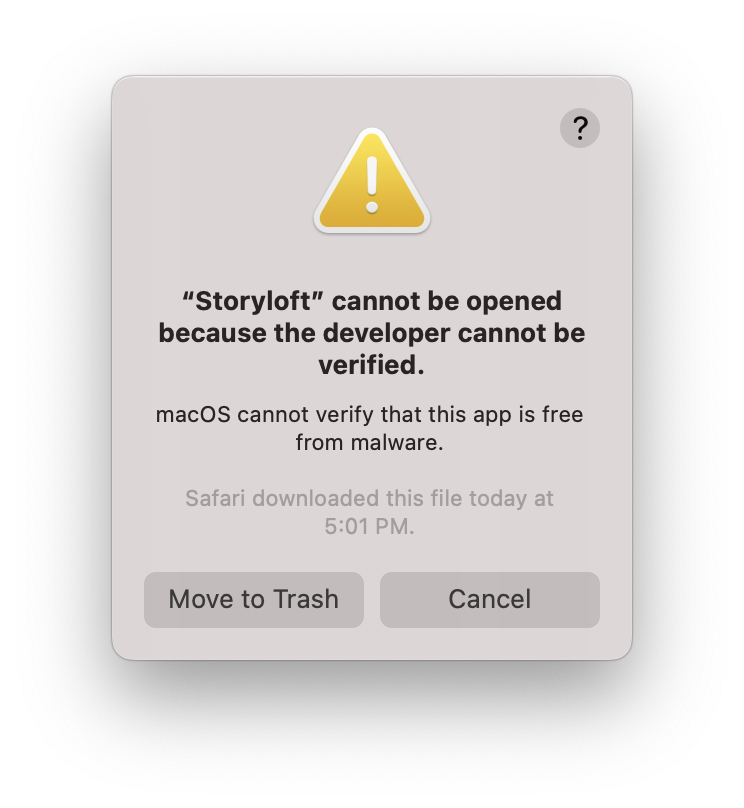
When you first open Storyloft, macOS may display a message such as:
“This app cannot be opened because Apple cannot verify it.”
To open Storyloft anyway:
Option 1 (Recommended)
- Locate the Storyloft application in your Downloads folder.
- Hold the Control (⌃) key and click the Storyloft app.
- Select Open from the menu.
- Click Open again when prompted.
macOS will remember your choice and Storyloft should launch normally from then on.
Option 2
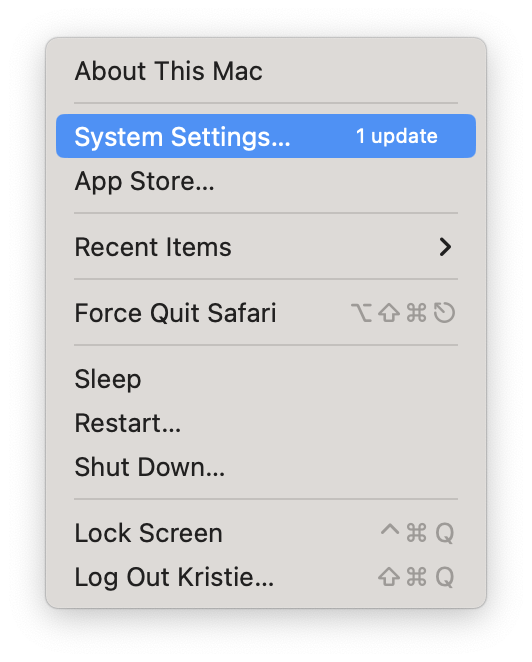
- Open System Settings.
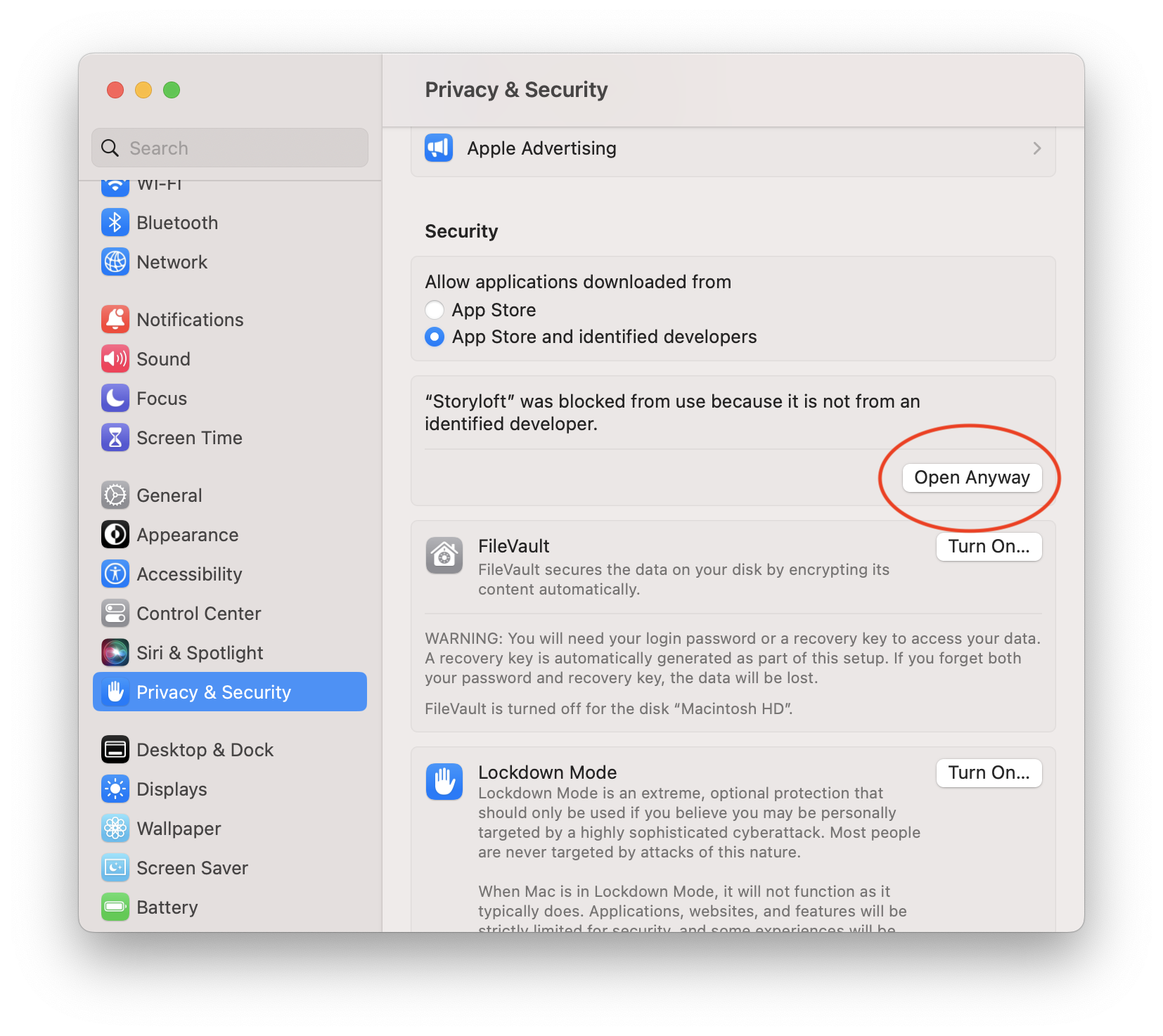
- Navigate to Privacy & Security.
- Scroll down until you see a message indicating Storyloft was blocked.
- Click Open Anyway.
- Confirm by clicking Open.
Windows Installation
When launching Storyloft for the first time, Windows SmartScreen may display a warning such as:
“Windows protected your PC.”
To continue:
- Click More info.
- Click Run anyway.
Storyloft should launch normally.
Still Having Trouble?
If you’re unable to install or launch Storyloft, we’re happy to help.
Contact us and include:
- Your operating system version
- A screenshot of the error message
- Which installer you downloaded
We’ll help you get up and running as quickly as possible.
Thank you for trying Storyloft, and happy writing!