How to Export to PDF: A Practical Guide for Authors
You've finished the draft, the cover looks right in the editor, and the export dialog is open. The temptation is to click the first PDF option and move on, because the manuscript already took the work. That's the trap. How to export to PDF becomes a publishing decision the moment you need the file to survive a printer, a beta reader's tablet, or a submission portal without surprise reflow, missing pages, or a font substitution you didn't see coming.
Table of Contents
- Why PDF Export Deserves More Thought Than a Single Click
- Running the Storyloft Export Workflow Step by Step
- Print-Ready Versus Ebook-Ready Export Settings
- Typography, Fonts, Covers, and ISBN Barcodes That Travel With the File
- Preflight Checks That Catch Problems Before Anyone Else Sees the File
- Common Export Problems and How to Fix Them
- Building a Reusable Export Habit for Every Manuscript
Why PDF Export Deserves More Thought Than a Single Click
The first time an author exports a manuscript to PDF, the file usually looks fine at a glance. Then the printer opens it, or a beta reader changes the zoom, and the problems show up where it matters most. A PDF is not just a wrapped-up draft, it carries pagination, fonts, images, metadata, and accessibility structure, and those choices determine whether the file behaves like a publishable document or just a snapshot of the editor view.
PDF became the default final format for a reason. Adobe standardized it in 1993, and it later became an ISO standard, with ISO 32000-1 published in 2008 and ISO 32000-2 in 2017 as documented in the PDF history overview. That standardization is why export to PDF is now a normal final step in writing, reporting, and publishing tools, because the format preserves layout, fonts, pagination, and visual structure across devices and operating systems.
What the export dialog is really deciding
A manuscript exported with one preset can be clean and print-safe. The same manuscript exported with a different preset can be lighter, more flexible on screen, or visibly less precise when it reaches a printer. That's why the export dialog matters more than the save button.
Practical rule: If the file is leaving your hands, treat the export settings like final production settings, not convenience settings.
For authors, the biggest risk is assuming the PDF is only about visual appearance. It's also about whether the file is stable enough for proofing, submission, and archival use. In practice, the safest mindset is simple. You're not closing the manuscript, you're choosing its final form.
Running the Storyloft Export Workflow Step by Step
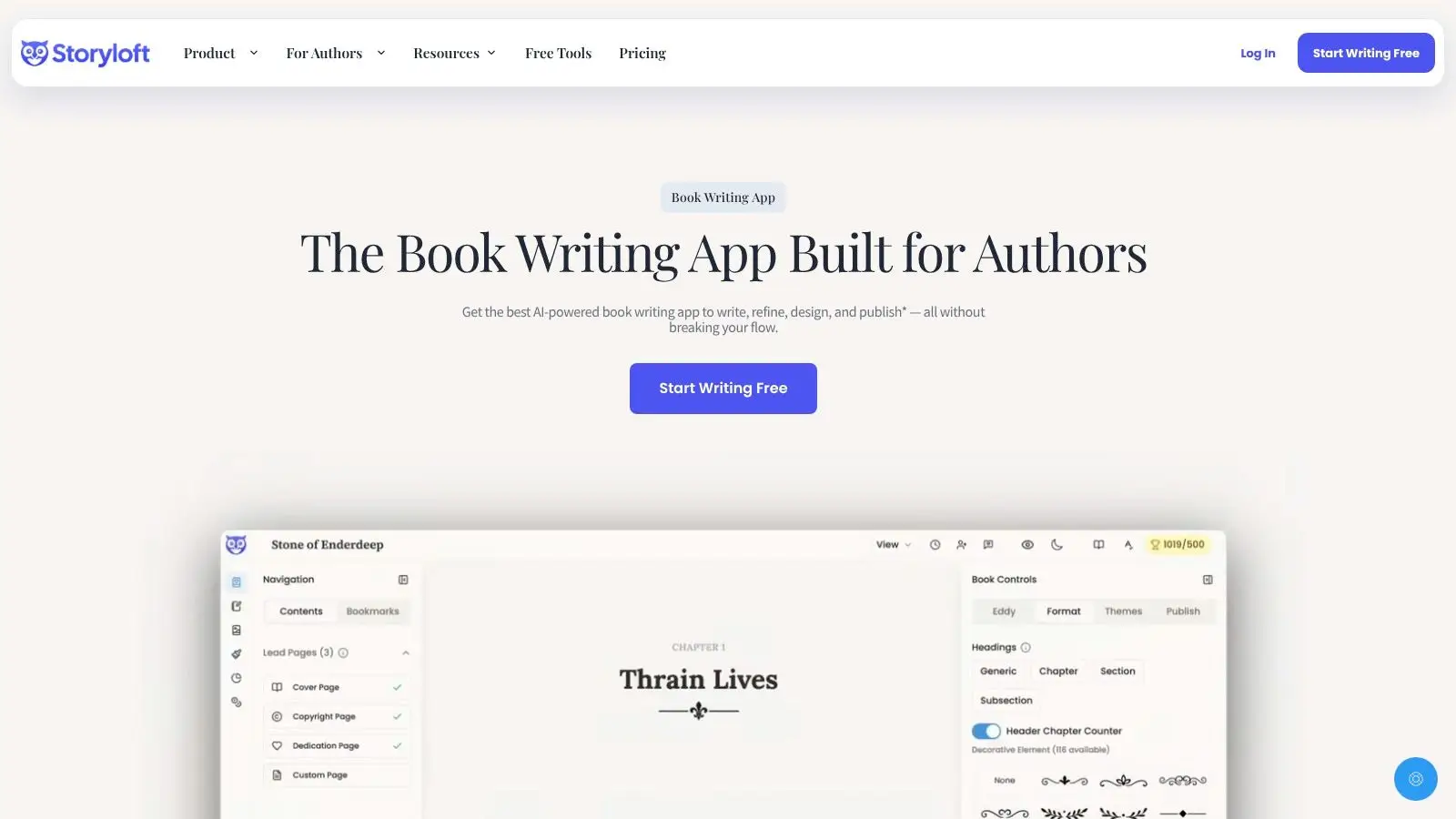
Open the active manuscript first, not a copied file or an older draft. Starting from the document itself lets the export tool read the current layout, cover, and section scope from the version you are preparing. If you are working through a print book workflow, keep the Storyloft instructions for how to export a print book PDF open beside the manuscript so you can match interior formatting with cover setup without guessing.
Choose the output target before you touch anything else. A print-ready PDF needs page-based decisions that hold up on paper, while an ebook-ready PDF is usually for review copies or screen proofing and can be a little more forgiving. That split matters because scope, typography, and cover packaging do different jobs depending on where the file is going next.
If you want a broader reference point outside Storyloft, Resumey.Pro's guide to professional PDF from Markdown shows the same principle in a different workflow, the export is only as reliable as the structure you feed into it.
Set the manuscript scope before you export
Scope is the first thing I check. Confirm which sections are included, because a PDF can only carry what is selected or active. That includes front matter, back matter, appendices, and any alternate cover or review pages you need in the file.
A clean export is often just a complete export.
Select the theme and typography you want locked into the file, then verify cover synchronization if the manuscript is tied to a matching cover design. In a book workflow, that connection matters because the cover and interior travel as one submission package, even if they are exported as separate files.
Use the built-in export path instead of a print-to-PDF shortcut when you care about how the file will behave outside your screen. That route is usually better at preserving document structure, and Microsoft's desktop export guidance makes the same distinction for PDF and XPS output, where the file-based export workflow is separate from a printer driver that happens to write to PDF as Microsoft describes for Office desktop apps.
Print-Ready Versus Ebook-Ready Export Settings
A PDF can look finished on screen and still be wrong for the job you plan to use it for. A print-ready file has to hold up as a page object, with the right size, margins, and output behavior for a press or printer. An ebook proof has a different job. It needs to be easy to review, light enough to share, and forgiving enough for screen reading without pretending to be final production art.
The split starts with page size, bleed, and layout. Print-ready files need the correct trim size, and when the design calls for it, bleed and margins that support physical cutting. Ebook-ready files are usually less concerned with bleed and more concerned with making the content legible in a digital review context. One file can be acceptable for both only if your manuscript is very simple, and that is not the case for most books.
The other split is visual fidelity versus portability. Print output usually needs higher image quality and fully embedded fonts so the pages render consistently at the press. Ebook proofs can tolerate a bit more compression if the goal is to circulate a draft quickly and keep the file easy to send. Microsoft's export guidance separates Standard quality from Minimum size in its desktop PDF and XPS workflow, which matches the practical trade-off authors face in the built-in export workflow.
Print-ready and ebook-ready settings side by side
| Setting | Print-Ready PDF | Ebook-Ready PDF |
|---|---|---|
| Page size | Match trim size exactly | Match the review format you want |
| Bleed | Use when the cover or interior design needs it | Usually not needed |
| Typography | Fully embedded fonts for consistent output | Keep fonts consistent, but file weight matters less |
| Images | Favor higher fidelity | Compression can be more aggressive if the proof stays readable |
| Color handling | Set for press-safe output where applicable | Screen viewing is usually the priority |
| Scope | Include the exact print sections you need | Include only the sections needed for review |
Storyloft's setup notes for a print-ready PDF setup guide are useful here because they keep the export decision tied to the delivery target. Authors often waste time trying to make one file act like both a press proof and a reading copy, but the cleaner approach is to choose the target first and verify the PDF against that use.
Typography, Fonts, Covers, and ISBN Barcodes That Travel With the File
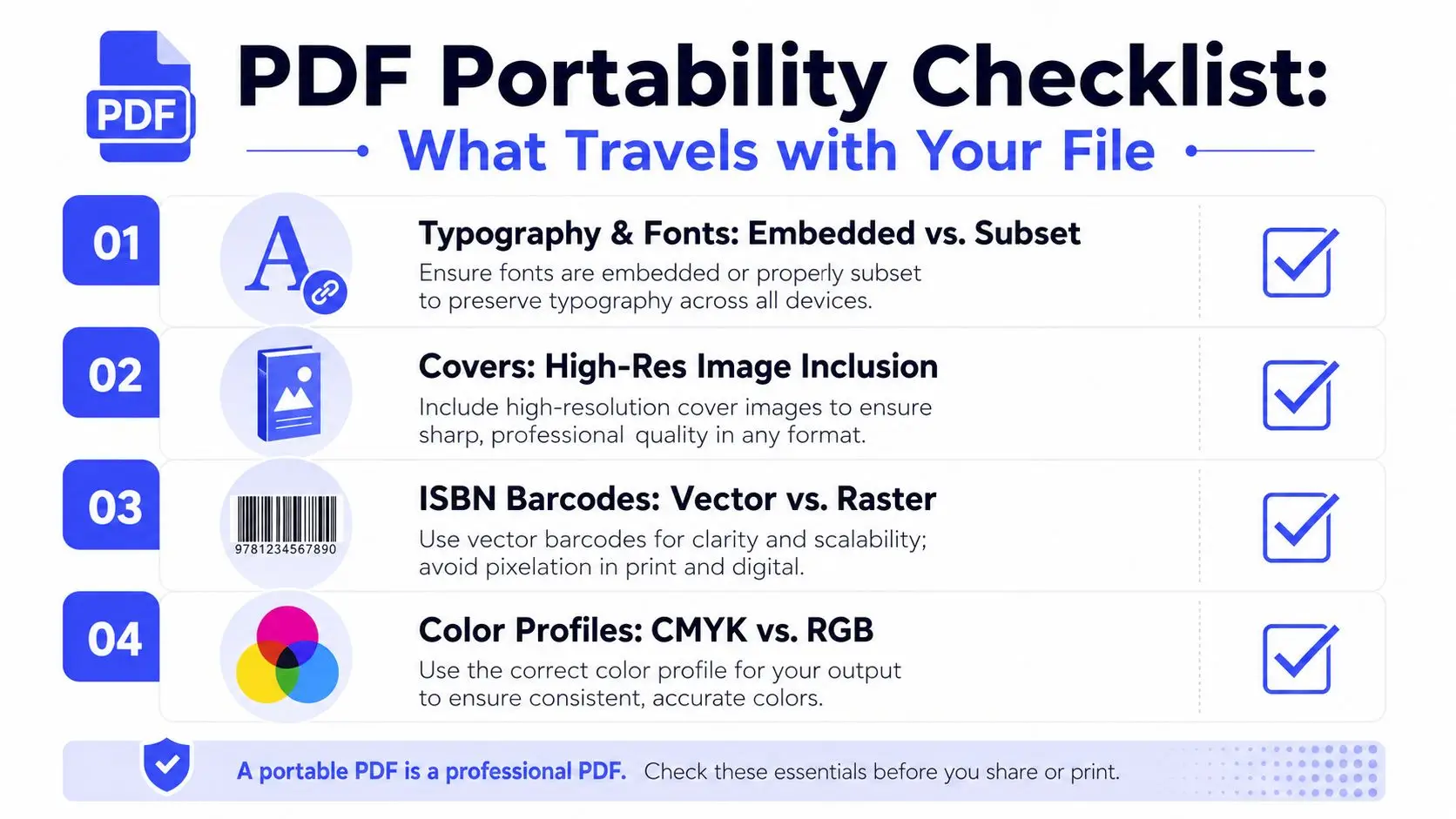
A PDF only travels well when the file carries the parts that make it behave the same way elsewhere. Typography, cover art, ISBN placement, and metadata are not separate chores, they're one portability problem. If any of them is off, the file can still open, but it may not print or submit cleanly.
Storyloft's theme system is built around hand-curated fonts that apply consistently across print and ebook formats, which is the right idea for long-form publishing. You don't want a heading font that looks elegant in the editor and then substitutes on someone else's machine. That's why font embedding and document properties matter so much in final export, and why accessibility-focused export guides recommend preserving document structure and metadata during PDF creation for reuse in reading systems and archival workflows.
The four portability decisions that matter most
- Typography and fonts: Use fonts that embed cleanly, because a PDF that can't carry its typeface may substitute without notice on the recipient's device.
- Covers: Preview the cover at actual size before export so trim, bleed, and image placement don't shift at the last stage.
- ISBN barcodes: Decide whether the barcode lives on the printed cover or is left for the printer's workflow, then verify it remains legible after export.
- Metadata: Fill in the title, author, language, and description so the file is easier to identify in a reader library or submission portal.
Practical rule: If the cover is meant to travel with the file, check it at the same resolution and scale the printer will see, not just at editor zoom.
Here's the useful mental model. Typography affects how the manuscript feels. Covers affect how the file presents. ISBN barcodes affect whether the submission survives production checks. Metadata affects whether the file can be found and sorted later. Those are different jobs, but they're all decided at export.
For typography choices inside Storyloft, the themes and fonts guide is the right reference point when you want your interior style to stay consistent from draft to final PDF.
Preflight Checks That Catch Problems Before Anyone Else Sees the File
Export is only halfway done when the file downloads. The true test is opening the PDF in a neutral reader, not the authoring app, and checking whether it behaves like a finished document. That means page order, chapter sequencing, font rendering, image clarity, and accessibility structure all need a quick review before anyone else sees the file.
A good preflight starts with the obvious checks. Make sure the page count matches your expectation, then scan the opening and closing pages for missing sections. Vendor guidance on PDF export shows that scope can depend on the active sheet, layout, or visible content, which is why hidden elements and inactive views can disappear if you're not careful as noted in export documentation for multi-layout workflows.
A short preflight routine worth repeating
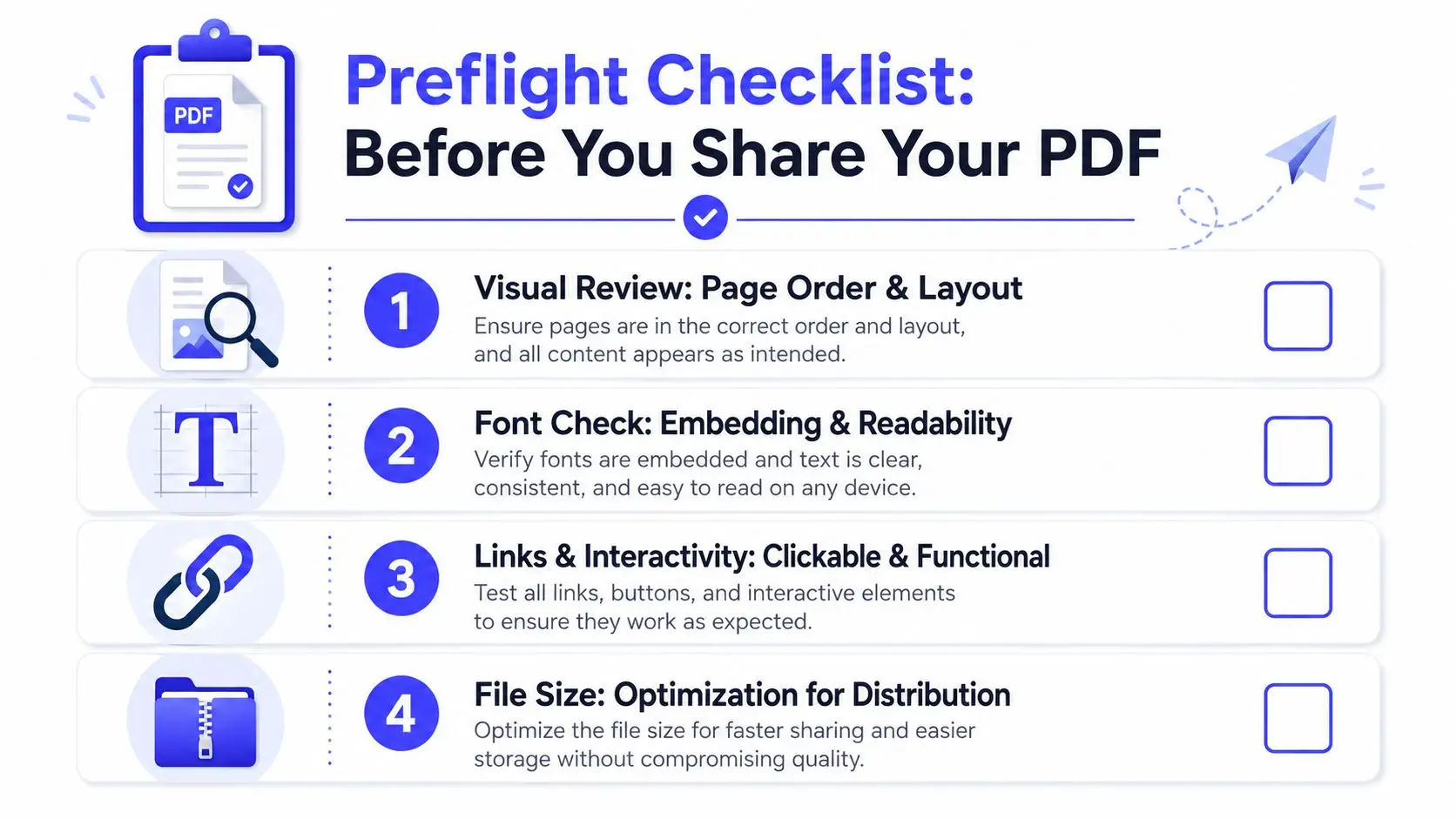
- Visual review. Open the file in a reader outside the writing app and check that page order, chapter starts, and cover placement match the manuscript.
- Font check. Confirm that the fonts render cleanly and don't substitute unexpectedly.
- Image review. Inspect illustrated pages, charts, and covers at the size a reader or printer will use.
- Accessibility review. Look for tagged structure and reading order if the file will be shared broadly or archived.
Accessibility belongs in that checklist, not as an afterthought. Institutional guidance recommends tagged PDF/document structure and preserved properties because those settings retain headings, reading order, and metadata that screen readers and indexing tools depend on in export workflows for structured PDFs. A visually correct file can still be a poor reading file if the structure wasn't exported.
Open the PDF somewhere neutral before you send it anywhere. Most export mistakes are easier to catch in five minutes of review than in a second round of file fixes.
The goal is simple. Don't ask the printer, editor, or beta reader to discover what you could have caught in preflight.
Common Export Problems and How to Fix Them
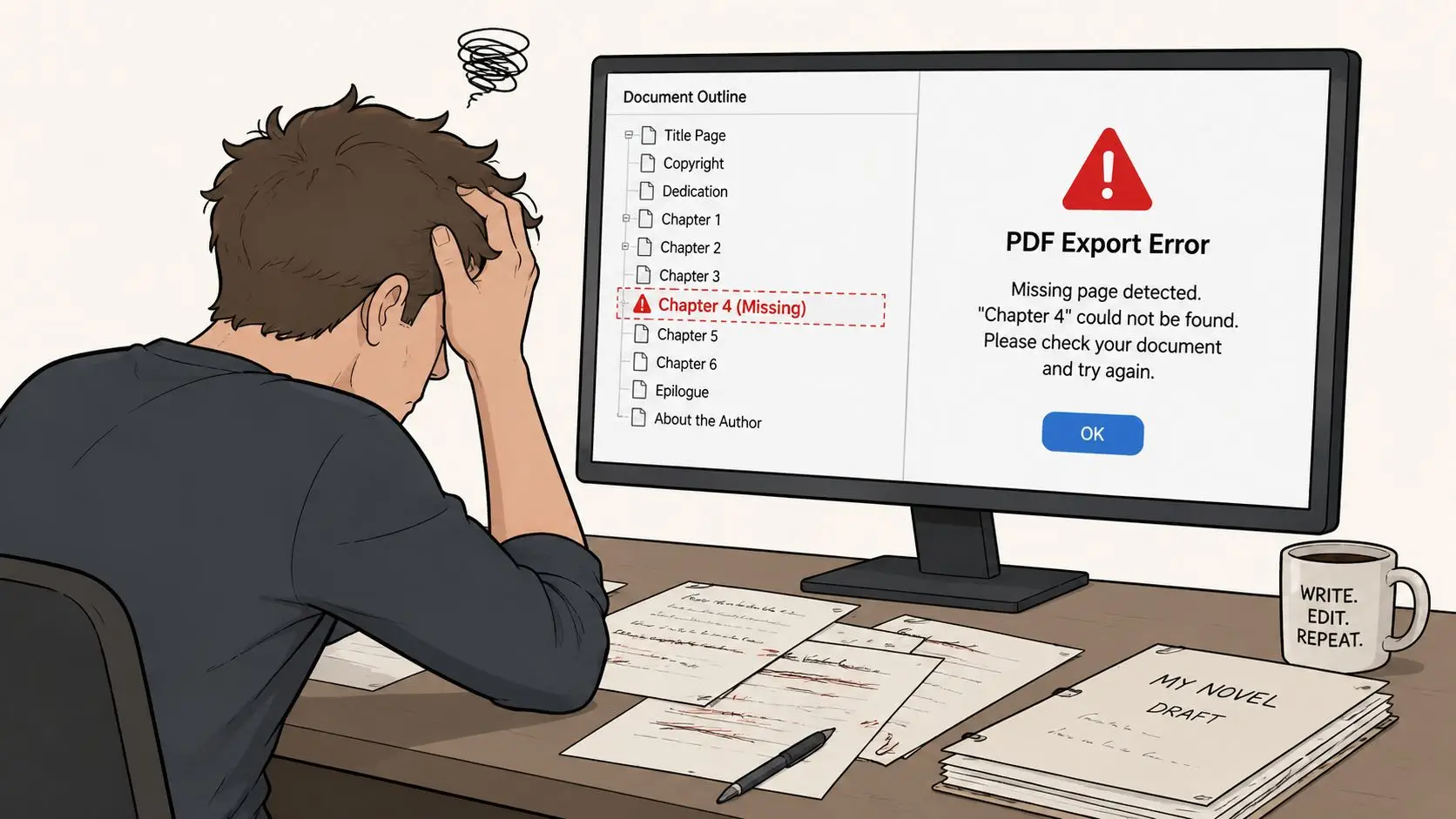
Most export failures are easier to diagnose than they look. A missing chapter usually points to scope, selection, or the wrong document state. A bloated file usually comes from image handling that is too heavy for the job. Fonts that change on the page often mean the export path did not preserve them cleanly. A barcode that refuses to scan is usually a production issue, not some built-in flaw in PDF itself.
The first mistake is treating print-to-PDF and true file export as the same thing. They can produce different results, especially for pagination, embedded fonts, and document structure. The built-in export path in Office exists for a reason, and Microsoft separates that workflow from printing for desktop apps in Office's PDF/XPS export path. If the file is going to a printer, use the export route that keeps the layout under control.
Symptom, likely cause, fix
- A chapter or appendix is missing. The most likely cause is that it was outside the active view or export scope. Export from the correct manuscript state and check the selected sections before you generate the file.
- The file is too large. The most likely cause is image files that stayed too heavy for distribution. Reduce image weight before export so the PDF is easier to send and review.
- Fonts look substituted. The most likely cause is incomplete font embedding or a settings mismatch in the export path. Use the document theme and export settings that preserve the type treatment you already approved.
- The barcode scans badly. The most likely cause is that the cover artwork lost too much detail during export. Check the barcode at the intended output quality, not just on screen.
If the problem shows up in a paperback, the margin and gutter setup deserves a second look before you export again. A tight inner margin can make a layout look technically fine on screen and still print poorly. Storyloft's KDP paperback margin and gutter calculation guidance is the place to check that math before another round of file generation.
The practical move is to match the symptom to the setting, change one variable, and run the file again. That keeps you from restarting the whole manuscript when the fix is usually narrower than it first appears.
Building a Reusable Export Habit for Every Manuscript
A repeatable export habit keeps the whole process calm. Decide the target, lock the theme, confirm scope, then preflight the PDF in a neutral reader. That four-part routine works for novels, nonfiction, and illustrated books because it forces the same checks every time instead of relying on memory.
The value is consistency. Once you've set the pattern, you can regenerate print and ebook files only when the manuscript or layout changes, not every time you feel unsure. In a tool like Storyloft, the combination of theme presets, cover synchronization, and export panels turns a messy final step into a short publishing pass.
If you want a writing workspace that keeps drafting, cover design, and export decisions in the same place, visit Storyloft. It gives authors a practical path from manuscript to print-ready and ebook-ready PDFs without forcing them to stitch together separate tools. If you're refining a book for readers, printers, or beta feedback, it's a straightforward place to build that export habit.