
How to Format a Book for Print and Ebook
Home › Book formatting › How to format a book
To format a book, pick your trim size first, set margins from your page count, style your text with real chapter and paragraph styles, add front and back matter, then export a print PDF and a reflowable EPUB. Preview both before you upload. Good software handles the repetitive parts for you.
- Print and ebook are two different files
- Step 1: Choose a trim size before anything else
- Step 2: Set margins from your page count
- Step 3: Style the text, do not hand-format it
- Step 4: Add front matter and back matter
- Step 5: Export the print PDF
- Step 6: Export the ebook file
- A pre-upload checklist
- Format both versions in one app
- Frequently asked questions
Formatting is the part of book formatting that decides whether your manuscript looks like a book or like a long Word document. The good news is that it is a checklist, not an art. Do the steps in the right order and you will not have to redo them.
This guide covers both versions of your book: the fixed-layout print PDF and the reflowable ebook file. They are different files with different rules, and most formatting mistakes come from treating them as one.
Print and ebook are two different files
A paperback interior is a PDF where every page has a fixed size, fixed margins and a fixed page number. The text sits exactly where you put it.
An ebook is the opposite. It is a reflowable file, usually EPUB, and the reader’s device decides the font size, line length and page breaks. You control the structure and the styles, not the exact look of each page.
That is why the same manuscript needs two exports. It also means a “format once, publish everywhere” approach only works if your manuscript is clean at the source, with real headings and consistent styles instead of manual spacing.
Step 1: Choose a trim size before anything else
Trim size is the finished size of the printed page. Everything else depends on it: your page count, your line length, your spine width and your printing cost. Changing it late reflows every chapter.
For fiction and most nonfiction, the common choices are 5.5 x 8.5 inches and 6 x 9 inches. KDP calls 6 x 9 the most common paperback size in the US. Pick the size that matches books like yours on a shelf, then stay with it. KDP lists every supported size, with minimum and maximum page counts, on its trim size page.
Step 2: Set margins from your page count
Margins are not a style choice, at least not at the minimum. Amazon sets the smallest allowed inside (gutter) margin by page count, because thicker books curl more at the spine. Here are KDP’s current minimums for paperbacks.
| Page count | Inside (gutter) margin | Outside, top and bottom (no bleed) | Outside, top and bottom (with bleed) |
|---|---|---|---|
| 24 to 150 | 0.375 in | 0.25 in | 0.375 in |
| 151 to 300 | 0.5 in | 0.25 in | 0.375 in |
| 301 to 500 | 0.625 in | 0.25 in | 0.375 in |
| 501 to 700 | 0.75 in | 0.25 in | 0.375 in |
| 701 to 828 | 0.875 in | 0.25 in | 0.375 in |
Source: KDP’s margin chart, checked November 2026. Confirm current numbers on KDP’s trim size page before you export.
Treat these as floors. Most good-looking books use a bit more room than the minimum, especially at the gutter. And if your page count changes after you edit, check the inside margin again.
Step 3: Style the text, do not hand-format it
This is the step that separates a clean file from a fragile one. Use real styles for your chapter titles, body text, block quotes and scene breaks. Avoid tabs, strings of spaces and rows of blank lines to push things around.
- Body text: one serif or well-tested book font, usually somewhere around 10.5 to 12 points for print, with a single paragraph style and first-line indents instead of blank lines between paragraphs.
- Chapter openings: one consistent treatment, whether that is a drop, a number, an ornament or a title only.
- Scene breaks: one marker, such as a blank line plus an ornament, used the same way every time.
- Fonts: make sure the license lets you embed them in a PDF you will distribute.
Styles are also what make the ebook export work. An EPUB builds its table of contents from your chapter headings, so real heading styles give you working navigation for free.
Step 4: Add front matter and back matter
Front matter comes before chapter one and back matter after the last chapter. A typical order looks like this.
| Section | What goes in it |
|---|---|
| Half title and title page | Book title, subtitle, author name |
| Copyright page | Copyright notice, edition, ISBN for this format, rights statement |
| Dedication and epigraph | Optional, one short page each |
| Table of contents | Common in nonfiction, optional in fiction. Essential in ebooks for navigation |
| Back matter | Acknowledgments, about the author, also by, newsletter link |
Each format needs its own ISBN if you use ISBNs, so your paperback and ebook copyright pages will not match. Here is a clear explainer on why each format gets its own ISBN.
Step 5: Export the print PDF
Export single pages, not printer spreads, at exactly your trim size. A few settings trip people up.
- Embed your fonts. Both KDP and IngramSpark expect it.
- Add bleed only if something touches the page edge. If you have art or a background that runs to the edge, KDP asks for the PDF page at 0.25 in taller and 0.125 in wider than the trim size. Text-only books usually need no bleed.
- Know the platform. KDP is relaxed about PDF type. IngramSpark recommends PDF/X-1a:2001 or PDF/X-3:2002, and its interior file guide lists the details.
- Keep images at 300 DPI or higher at the size they print.
Step 6: Export the ebook file
For a reflowable ebook, the safest source is a clean EPUB. KDP’s supported formats page lists EPUB, Word (DOC and DOCX) and Kindle’s KPF format as the main options. MOBI is no longer accepted for new uploads.
Whatever you upload, preview it. Amazon’s Kindle Previewer shows how your book will look on different Kindle devices, and it is the quickest way to catch a missing chapter link or a broken scene break before a reader does. Our guide to the Kindle book format goes deeper on what KDP does with each file type.
A pre-upload checklist
- Trim size matches the size you chose in the KDP or IngramSpark setup.
- Inside margin matches your final page count.
- Page count is even and within the allowed range for your trim size.
- Fonts are embedded, and body text is at least 7 points (KDP’s minimum), though real books use far more.
- Chapter headings are real headings, so the ebook table of contents works.
- You have flipped through both files in a previewer and a proof copy if you can afford one.
Format both versions in one app
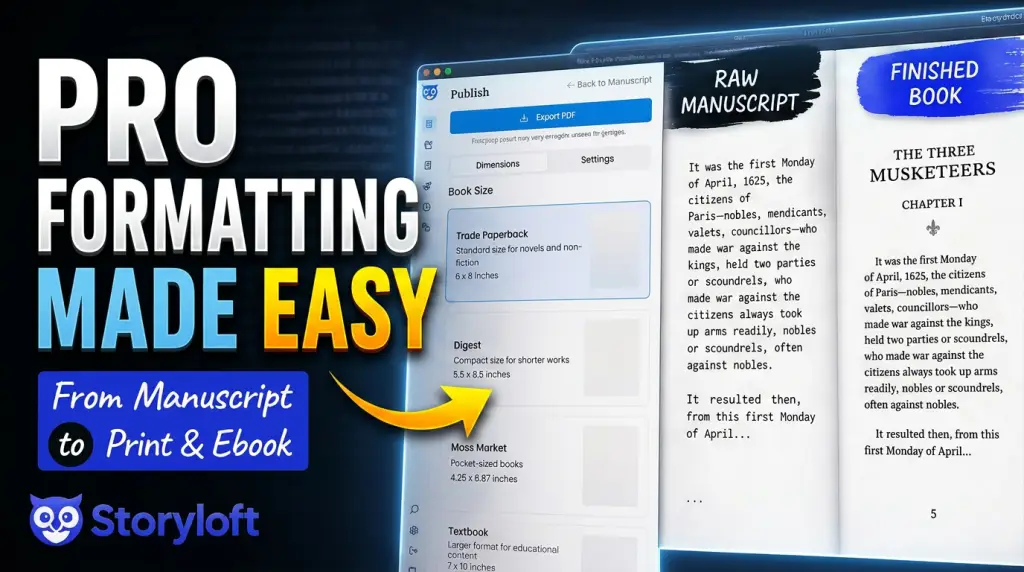
You can do all of this by hand in Word, or you can let software handle the repetitive parts. Storyloft is book writing software that lets you write, edit and format in the same place, so your manuscript never has to move between apps. You choose a theme, adjust trim size, margins, chapter openings and ornaments, and export a print-ready PDF and an ebook file for KDP, IngramSpark and other retailers.
If you want to see what the print side looks like, the print book formatting page shows the themes. If you are weighing tools, ebook formatting software compared lays out the options and what each one costs.
Frequently asked questions
What is the best trim size for a novel?
There is no single best size. Many novels use 5.5 x 8.5 inches or 6 x 9 inches. Look at paperbacks in your genre and match what readers already expect.
Can I format a book in Microsoft Word?
Yes. Set your page size and margins from your page count, use styles for headings and body text, and export a PDF with fonts embedded. It works, but it takes careful setup and a lot of rechecking whenever the page count changes.
Do I need a separate file for print and ebook?
Yes. Print uses a fixed-layout PDF. Ebooks use a reflowable file such as EPUB. You can keep one clean manuscript as the source for both.
Do I need a professional formatter?
Not necessarily. Software can handle trim size, margins, chapter styling and exports for a standard book. A designer helps most with heavily illustrated or complex layouts.
How many pages should my book have for KDP?
KDP’s minimum for paperbacks is 24 pages, and the maximum depends on trim size, paper and ink. Your page count is calculated from your file and rounded up to an even number.
Write, edit, illustrate and format the whole book in one place.
Storyloft takes you from first draft to a print-ready book without moving your manuscript between apps.
$0 today. $39/month after 14 days. Cancel anytime.