
How to Format a Book for Print and Ebook (No Typesetter)
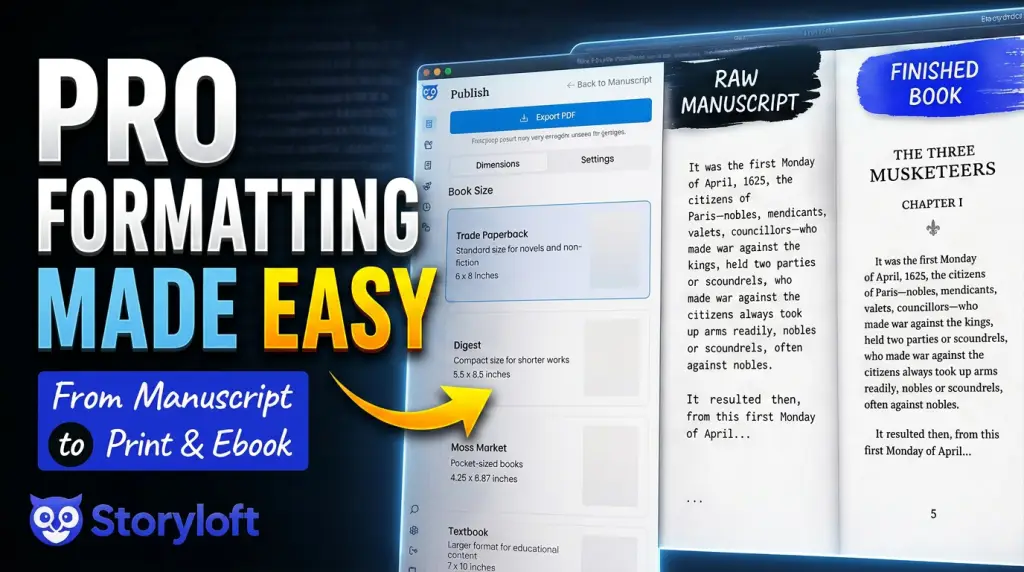
Formatting is where a lot of finished manuscripts stall. You wrote the book. Now you’re staring down indentation rules, justification, mirrored margins, trim sizes, and bleed — the kind of typesetting work that usually means hiring a layout specialist or wrestling with desktop publishing software. Storyloft removes that step. You pick the look you want, and the platform handles the production details for you.
Here’s the full walkthrough for formatting and exporting both a print book and an ebook, using a deliberately heavy test case: The Three Musketeers — 67 chapters plus an epilogue, around 250,000 words. If Storyloft can format that smoothly, it can format yours.
Storyloft does the typesetting for you
This is the core idea. You never have to manage indentations, line wraps, or text justification by hand. When it’s time to publish, Storyloft applies professional typesetting automatically — and you see most of it live in the editor before you ever export. The author chooses the style; the platform does the production.
That matters most on large manuscripts. A quarter-million-word novel loads and formats without the lag or breakage you’d expect from a browser-based tool, so manuscript size isn’t a barrier.
Step 1: Add a chapter counter and headers
Open the book controls, select a chapter, and add a chapter counter. Storyloft drops in a clean, consistent chapter heading — “Chapter One,” the chapter title beneath it, with matching alignment. The styling carries across every chapter automatically, so chapter seven looks exactly like chapter one. No manual repetition.
Step 2: Choose a decorative element
Storyloft includes a library of decorative elements — ornaments and motifs that sit alongside your chapter headings. For a book set in France, a fleur-de-lis fits the period and tone. Pick something that matches your book’s world rather than something ornate for its own sake; the decoration should feel like it belongs.
Step 3: Pick a theme
Themes control the overall typography and feel of your book — the serif family, the proportions, the personality. Storyloft ships several, including Dante, Hemingway, Kenney, and Augsburg. Each gives the same manuscript a distinctly different character: some classic, some modern. Try a few against your own text and choose the one that reads the way your book should feel. There’s no wrong answer — that’s the point.
Step 4: Set your trim size and watch the page count update live
When you’re ready, go to Publish → Print Book → Export Book and choose a trim size. Trade paperback (6×9) is the most common — it’s the Barnes & Noble paperback size, and many hardbacks use it too.
As you adjust settings, Storyloft calculates your page count in real time. The Three Musketeers at 6×9 came out to well over a thousand pages — useful to know before you commit, since page count drives your printing cost.
Step 5: Fine-tune the print options
The default layout is genuinely press-ready — aligned headers, correct first-paragraph and continuation indentation, mirrored page numbers, the book title running on the correct pages. For most authors, the defaults are the best way to go. But if you want to refine it, you have control over:
- Print marks — toggle the crop and registration marks on or off for your printer’s requirements.
- Bleed — the print area that extends past the trim edge so nothing gets cut off white. The on-screen blue guide shows where your bleed starts and won’t appear in the export. Bump it up if your book includes images that run to the edge.
- Drop caps — large decorative opening letters for each chapter. One click adds them, and they automatically match your chosen theme font.
- Inner (gutter) margin — the binding-side margin. On a thick book, widening the inner margin (to around 1.5″) gives readers room to read comfortably without fighting the spine when they’re deep in the middle of the book.
Step 6: Export a print-house-quality PDF
When you hit export, Storyloft doesn’t try to render the PDF in your browser. It hands the job to a dedicated export engine that builds your file server-side, verifies the layout, and returns a print-house-quality PDF. That file is ready to upload directly to IngramSpark, KDP, or any other printer — no further prep needed.
The exported Three Musketeers came back fully formatted: indentation intact, drop caps in place, intentional left-aligned sections preserved, the epilogue landing exactly where it should. Hand it to your printer and you’re done.
Step 7: Export your ebook (EPUB) with the same design
Once your print book is set up, the ebook takes almost no extra work. Because you’ve already chosen your theme, there’s nothing else to configure. Go to Export Ebook, select your cover, and export. The resulting EPUB carries the exact same theme and formatting as your print edition, so your book looks consistent across formats without a second design pass.
Covers: CMYK, 300 DPI, print-ready
Storyloft also includes a cover creation tool that produces high-quality covers for both ebook and print — with proper CMYK color and 300 DPI resolution, the standard for professional printing. You can design your cover in the same place you format the book.
Formatting shouldn’t be the thing that stops you
The traditional path to a formatted book runs through a typesetter or a layout specialist. Storyloft’s position is that you shouldn’t have to do that. You know your book’s style better than anyone — you should get to choose the theme and feel that fit it, and let the platform handle the nitty-gritty. Print and ebook, professionally formatted, from the same manuscript.
Open a free Storyloft account and format your book the easy way.
Frequently Asked Questions
Do I need to know how to use typesetting or layout software?
No. Storyloft handles indentation, line wraps, justification, headers, and page numbers automatically. You choose the theme and a few options; the platform produces the professional layout.
Can Storyloft handle very long manuscripts?
Yes. The walkthrough uses The Three Musketeers — 67 chapters and roughly 250,000 words — specifically to show that large books load and format smoothly.
What trim size should I use?
Trade paperback (6×9) is the most common choice — it’s the standard Barnes & Noble paperback size, and many hardbacks use it too. Storyloft calculates your total page count in real time as you adjust the trim size.
Will my ebook match my print book design?
Yes. The EPUB export uses the same theme and formatting you set for your print book, so both formats stay visually consistent with no extra setup.
Can I send the exported file straight to KDP or IngramSpark?
Yes. Storyloft exports a print-house-quality PDF built by a dedicated server-side engine. You can upload it directly to IngramSpark, KDP, or another printer without additional preparation.
What are drop caps and how do I add them?
Drop caps are the large decorative letters that begin a chapter. In Storyloft you add them with one click, and they automatically match your selected theme font.
What is bleed, and do I need it?
Bleed is the printable area extending past the trim edge so edge-to-edge content isn’t cut off with a white border. The on-screen blue guide shows where bleed starts and doesn’t appear in the export. It matters most if your book contains images that run to the page edge.
Do I need a separate designer for my cover?
No. Storyloft includes a cover creation tool that produces print-ready covers in CMYK at 300 DPI for both ebook and print editions.
Is Storyloft free to try?
You can open a free account to try formatting and exporting your book.
